| log | ||
| .gitignore | ||
| dialogrc | ||
| hosts.conf.example | ||
| LICENSE | ||
| README.md | ||
| update-manager-ui.png | ||
| update-manager-ui.sh | ||
| update-manager.conf.example | ||
| update-manager.sh | ||


🖥️ Update Manager - Version: 1.0.1
Simple CLI tool to check and manage updates across multiple Ubuntu systems over SSH.
Built for Lanx environments – lightweight, fast and no unnecessary dependencies.
📚 Table of Contents
- Features
- Update Manager UI
- Quick Install
- SSH Setup
- Configuration
- Usage
- Logging
- File Structure
- How it works
- Requirements
- Future ideas
- License
Features
- Check updates on multiple hosts
- Run checks remotely over SSH
- Simple config files
- Built-in logging (file + terminal)
- Dialog-based UI menu
- No agents required
- Works with existing SSH setup
Update Manager UI
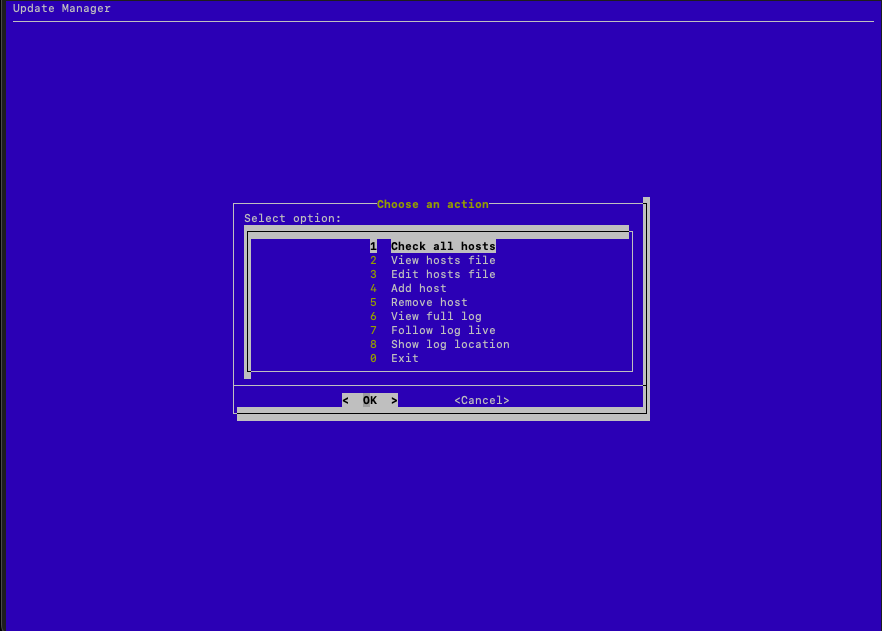
Lightweight • Terminal-based • Works over SSH
Quick Install
git clone https://github.com/YOUR-USER/update-manager.git
cd update-manager

sudo apt update
sudo apt install -y dialog openssh-client

sudo mkdir -p /opt/update-manager
sudo cp update-manager.sh update-manager-ui.sh dialogrc /opt/update-manager/

sudo chmod +x /opt/update-manager/update-manager.sh
sudo chmod +x /opt/update-manager/update-manager-ui.sh

sudo ln -sf /opt/update-manager/update-manager.sh /usr/local/bin/update-manager
sudo ln -sf /opt/update-manager/update-manager-ui.sh /usr/local/bin/update-manager-ui
SSH Setup (Required)
Update Manager uses SSH to connect to your hosts.
You must have SSH key-based authentication set up (no password prompts).
Generate SSH key (if not already done)
ssh-keygen -t ed25519
Copy key to hosts
ssh-copy-id user@192.168.1.10
ssh-copy-id user@192.168.1.20
ssh-copy-id user@192.168.1.30
Test connection
ssh user@192.168.1.10
You should be able to connect without entering a password.
⚠️ If SSH is not configured, the tool will fail or hang during execution.
Configuration
Copy config files
cp update-manager.conf.example update-manager.conf
cp hosts.conf.example hosts.conf
Edit hosts
nano hosts.conf
Example:
# name        ip              user
server1       192.168.1.10    user
server2       192.168.1.20    user
server3       192.168.1.30    user
Usage
Start UI
update-manager-ui
Check updates (CLI)
update-manager check
Logging
The tool logs both to terminal and file.
Primary location
/opt/update-manager/log/update-manager.log
Fallback location
~/update-manager/log/update-manager.log
Notes
-
Log directory is created automatically
-
Log file is created automatically
-
Output is written to both terminal and file
-
Log levels:
- INFO
- WARN
- ERROR
Logs can be viewed directly from the UI.
File Structure
/opt/update-manager/
├── update-manager.sh
├── update-manager-ui.sh
├── update-manager.conf
├── hosts.conf
└── log/
    └── update-manager.log
How it works
- Uses SSH to connect to each host
- Runs
aptcommands remotely - No agents or services needed
- Designed for simple and efficient operations
Requirements
- SSH access to all hosts
- SSH keys recommended (no password prompts)
- Ubuntu/Debian-based systems
dialog(for UI)
Future ideas
- 🔔 Notifications (ntfy / push alerts)
- 🌐 Web interface
- 📧 Email reporting
- 📜 Advanced logging / audit trail
- 📊 Basic monitoring (status, last check, pending updates)
- 🧩 Plugin system (extensible modules)
- 🔐 Security & compliance checks
- 🤖 AI integration (Lanx AI)
License
This project is licensed under the GNU GPL v3 License.
See the LICENSE file for full details.
Author
Built with ❤️ for Lanx by NodeFox 🦊
Maintained by Eddie Nielsen Feel free to contribute, suggest improvements or fork the project.